This Operation Manual recommends two methods for creating IG areas: GeoJson and PNG.
You will need to use only one of them.
In both cases, you need to capture the geographical information of the area
in the form of a sequence of coordinates that defines the boundary of your IG area.
This information will be saved as a computer file in GeoJson or PNG format.
You will then need to email the file to us at admin@aterroir.org .
We will add your IG area information to the AtlasTerroir web site.
GeoJson 1 file Method
● You need only to have a basic understanding of geographical information,
● and know how to use some simple tools to navigate and draw on a map.
● You have some knowledge of GIS software (Geographic Information System);
● Use your favorite web browser, and go to this web site: : umap.openstreetmap.fr .
● Use the map viewing and navigation tools to locate your IG area.format.
● Use the polygon draw tool to draw the boundary of the your IG area.
● Save the polygon as a GeoJson file on your computer.
● Email the file to admin@aterroir.org
Putting the map online :
● Once the IG module is done, the participant “Contributor” will receive the Iframe to install;
he will have his zone and will be able to install it for his site if he wishes, at the size he has chosen.
Example “The Terroir AOP Longjing”
Png 2 files Method
● You won’t need GIS software (Geographic Information System).
● A vector drawing software will be sufficient, for example the free vector drawing software: Inkscape .
● You can create a simple IG area and place it on a site in an Iframe with the desired dimensions;
● The created area can be completed with a PDF presentation of the GI when the Label is hovered over.
Step A:
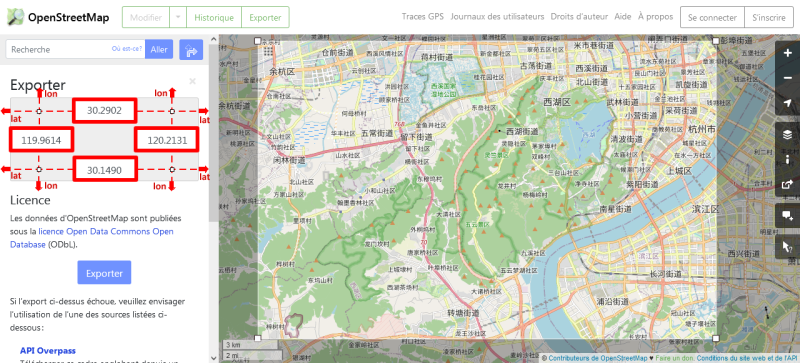
● Go to: https://www.openstreetmap.org ;
● You click on the green link: “Export”
and after you click on the blue link “Manually select another zone“
and then you will mark your Label area; you will notice: the Longitudes and Latitudes appear on the left;
● Make a screenshot saved in a First file in PNG format.
Step B:
● In a vector drawing program, open a new file and copy and paste your screen image
● Crop or trim precisely the frame delimited by your longitudes and latitudes.
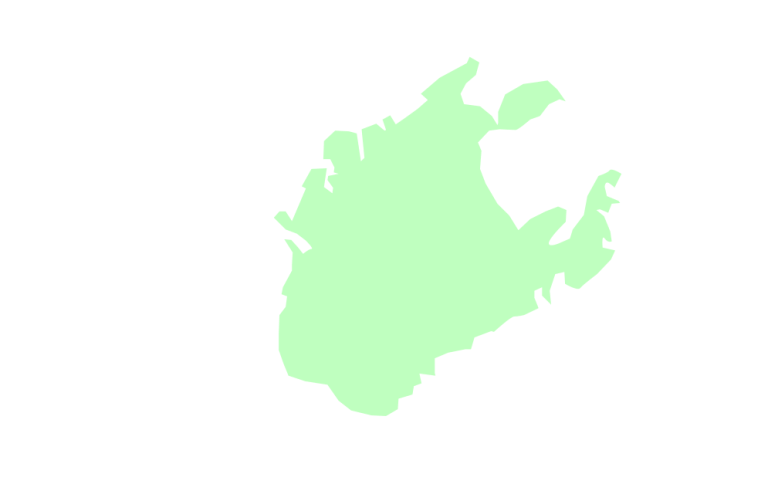
● Draw on a new layer with the pen tool the outline of your Label area in this frame
● You can use a “bitmap” (non-vector) image imported from the internet of an area already created;
this image must be well repositioned, adjusted in the background of the layer, cropped with the pen tool.
● You can also vectorize it directly with a vector drawing software..(Inkscape: free vector drawing software)
You now have your Label area on a single layer with the vectorized GI area
which you need to colorize to 35% or more transparency
so that the AtlasTerroir Open Street Map background can be seen;
● You save the frame with its cropped area in the Second PNG file.
Step C:
– Send us both files by mail –
That’s it! The GI area is ready to be put online